Lab 1: Java Tooling and Setup
Welcome to CS 3100! In this lab, you'll set up your Java development environment and get familiar with the tools we'll use throughout the course.
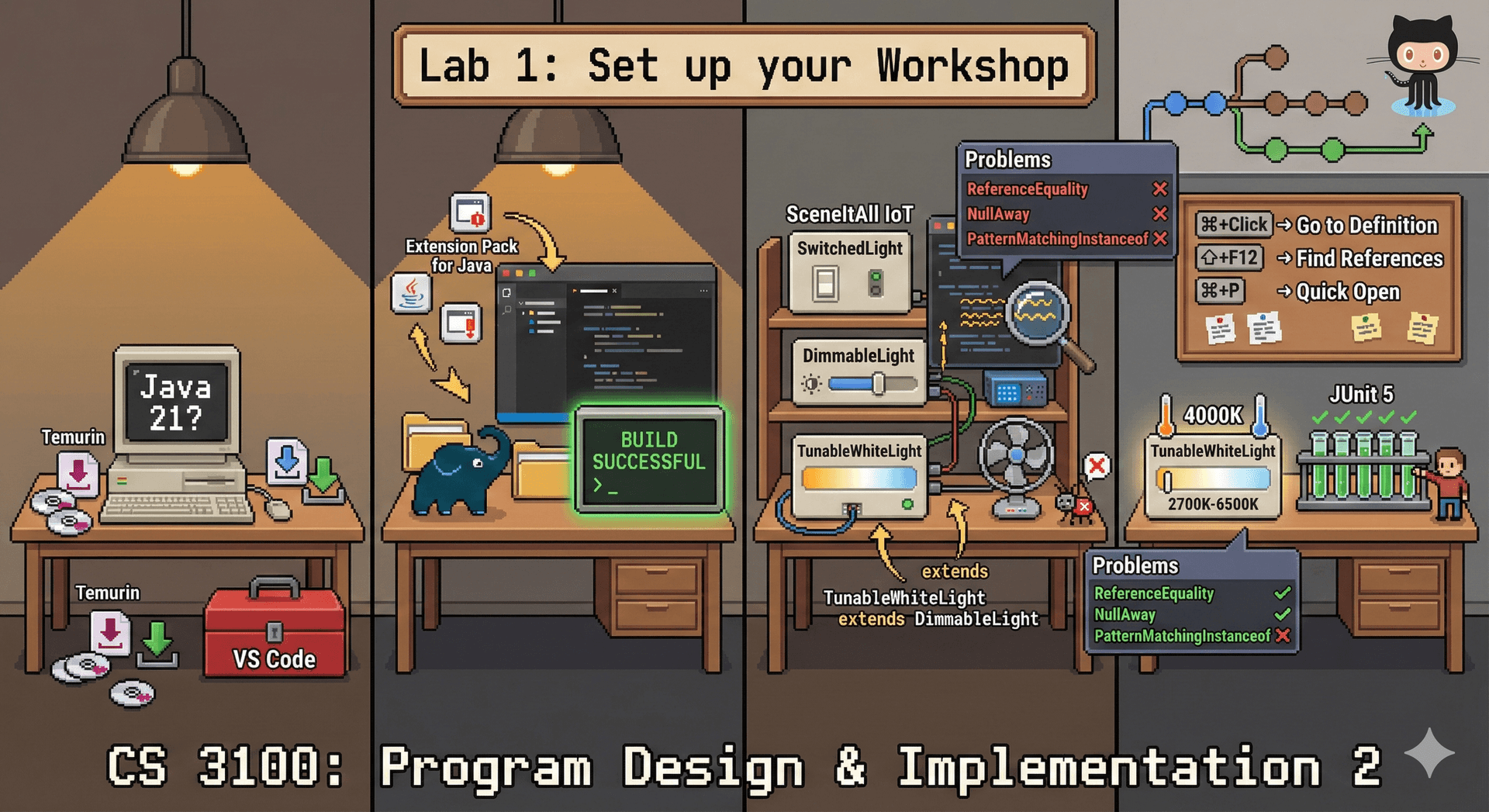
Getting your development environment working is essential — you can't complete any other coursework without it. To receive credit for this lab:
Option 1: Successful Setup
- Complete all steps, resulting in a passing build (
./gradlew buildsucceeds) - All tests pass
- Push your completed work to GitHub
- You'll see 2/2 in Pawtograder after submitting your lab if everything is working.
Option 2: Incomplete Setup (Partial Credit)
If you're unable to get everything working despite your best efforts:
- Submit a
REFLECTION.mdthat documents:- What steps you completed successfully
- Where you got stuck and what error messages you encountered
- What resources you tried (documentation, office hours, Piazza, etc.)
- What troubleshooting steps you attempted
- You'll see 0/2 in Pawtograder after submitting your lab if everything is not working. A TA will review your reflection and give you credit if you made a good faith effort to complete the lab. A TA is also likely to reach out to you to insist that you meet with them in order to get your environment working.
We understand that environment setup can be frustrating, especially across different operating systems. The goal is to get you unstuck quickly — come to office hours if you're having trouble! If you have tips to share with other students to complete the lab, please share them on the course discussion board in Pawtograder.
Learning Objectives
By the end of this lab, you will be able to:
- Explain what a build system does and why we use Gradle
- Install and configure Java 21 (Temurin)
- Open and build a Gradle project in VS Code
- Understand basic Java inheritance and interfaces
- Run tests using JUnit 5
- Use Git to commit and push changes to GitHub
Part 0: Prerequisites
Before starting, ensure you have:
- A GitHub account (create one free at github.com if needed)
- git installed on your computer
- VS Code installed
For help with git and VS Code installation, see the CS 2100 setup instructions.
Part 1: Set Up Pawtograder and GitHub
Pawtograder is our course platform for assignments, grading, and collaboration. Before you can work on assignments, you need to connect your accounts.
For detailed instructions with screenshots, see the Pawtograder Student Guide.
Quick Setup Steps
- Log in to Pawtograder at pawtograder.com using your Northeastern credentials (click "Continue with Microsoft")
- Connect your GitHub account — when prompted, click "Sign in with GitHub" and authorize Pawtograder
- Accept the organization invitation — click "Open GitHub Organization Invitation" and accept using your GitHub account
💡 Already have a GitHub account? Use your existing account! This keeps all your coursework visible on your profile if you choose to make repositories public later.
🔄 Already have Pawtograder linked to GitHub from CS 2100? You'll still need to complete the steps above to enroll in the CS 3100 GitHub organization in Pawtograder (skipping step 2).
⚠️ Course not showing up? Enrollments sync automatically every hour. If you just registered, wait an hour and try again. If it still doesn't appear, contact your instructor.
Part 2: Install Java 21 (Temurin)
We'll use Eclipse Temurin, a free, open-source distribution of Java.
⚠️ IMPORTANT: You MUST use Java 21, not Java 25!
Even though Java 25 is newer, do not install it. Our build tools (Gradle 8 and, in particular, the Pitest plugin) do not yet support Java 25. If you install Java 25, your builds (including in VS Code) will fail with cryptic errors along the lines of "Unsupported class file major version 69". It may be possible to configure a local development environment to use Java 25, but we do not support it.
If you already have Java 25 installed, see the Troubleshooting section for how to switch to Java 21 (particularly important for Mac users).
Download the Installer
- Go to the Adoptium download page: https://adoptium.net/temurin/releases/?version=21
- Select your operating system:
- macOS: Choose
.pkginstaller (use aarch64 for Apple Silicon Macs, x64 for Intel Macs) - Windows: Choose
.msiinstaller (x64 for most computers) - Linux: Choose
.tar.gzor use your distribution's package manager
- macOS: Choose
Run the Installer
macOS
- Open the downloaded
.pkgfile - Follow the installation wizard
- Click through the prompts and enter your password when asked
Windows
- Open the downloaded
.msifile - Follow the installation wizard
- Important: On the "Custom Setup" screen, make sure these options are enabled:
- ✅ "Set JAVA_HOME variable"
- ✅ "Add to PATH"
Linux
For Ubuntu/Debian, you can also install via terminal:
sudo apt update
sudo apt install temurin-21-jdk
Part 3: Set Up VS Code
Connect VS Code to GitHub
Before you can clone repositories from our course organization, you need to connect VS Code to GitHub with proper authorization.
Important step if you already have connected VS Code to GitHub for another course: You will need to force a complete re-authorization of VSCode (and any git helpers, like Git Credential Manager) for the
neu-cs3100organization. This is because the previous authorization may not have included theneu-cs3100organization. The easiest way that we know how to do this is to open your GitHub Settings. Click on "Authorized OAuth Apps" and then click "Revoke all" (at a minimum, you will need to revoke VSCode, and potentially Git Credential Manager, and potentially "Microsoft Corporation" - if you are OK simply with "Revoke all", it is the most surefire way to do this). Then, follow the steps above to reconnect VS Code to GitHub for theneu-cs3100organization.
-
Open VS Code
-
Click the Accounts icon in the bottom-left corner of the sidebar (person icon)
-
If you see a GitHub account already connected:
- Click on your GitHub username
- Select Sign Out
- You need to sign out and back in to authorize access to the
neu-cs3100organization
-
Click Sign in with GitHub...
-
A browser window will open — sign in to GitHub if prompted
-
Important: You'll be asked to authorize VS Code. During this process, look for the SAML SSO section:
- Find
neu-cs3100in the list of organizations - Click Authorize next to it
- Complete any Northeastern SSO prompts
⚠️ Even if you've authorized VS Code for other courses, you must authorize it specifically for
neu-cs3100. Each organization requires separate authorization. - Find
-
Return to VS Code — you should now see your GitHub account connected
🚨 Did you complete the SAML authorization step? If you skipped step 6 or didn't see the organization authorization screen, the next step will fail. You won't be able to clone repositories from
neu-cs3100. Go back, sign out (step 3), sign back in, and make sure you authorize theneu-cs3100organization. This is required even if you've used VS Code with GitHub before!
Alternative: Set Up SSH Keys (Recommended to Avoid SAML Issues)
Many students experience authentication problems with SAML SSO when using HTTPS to clone repositories. Using SSH keys is a more reliable authentication method that bypasses these issues entirely.
💡 Why SSH keys? SSH keys provide a secure, persistent way to authenticate with GitHub without repeatedly entering credentials or dealing with SAML SSO prompts. Once configured, Git operations work seamlessly.
Check for Existing SSH Keys
Before creating new keys, check if you already have SSH keys configured:
macOS/Linux:
ls -la ~/.ssh
Windows (PowerShell):
ls ~\.ssh
Look for files named id_rsa.pub, id_ed25519.pub, or id_ecdsa.pub. If you see these files, you already have SSH keys and can skip to Add SSH Key to GitHub.
Generate a New SSH Key
If you don't have SSH keys or want to create new ones for this course:
macOS:
-
Open Terminal (⌘+Space, type "Terminal")
-
Generate the key (replace with your GitHub email):
ssh-keygen -t ed25519 -C "your-github-email@example.com" -
When prompted "Enter a file in which to save the key," press Enter to accept the default location (
~/.ssh/id_ed25519) -
When prompted for a passphrase, you can either:
- Press Enter twice to create a key without a passphrase (easier, but less secure)
- Type a secure passphrase (you'll need to enter it when using the key)
-
Start the SSH agent and add your key:
eval "$(ssh-agent -s)"
ssh-add ~/.ssh/id_ed25519 -
Copy your public key to clipboard:
pbcopy < ~/.ssh/id_ed25519.pub
Windows:
-
Open Git Bash (or PowerShell)
-
Generate the key (replace with your GitHub email):
ssh-keygen -t ed25519 -C "your-github-email@example.com" -
When prompted "Enter a file in which to save the key," press Enter to accept the default location (
C:\Users\YourName\.ssh\id_ed25519) -
When prompted for a passphrase, you can either:
- Press Enter twice to create a key without a passphrase (easier, but less secure)
- Type a secure passphrase (you'll need to enter it when using the key)
-
Start the SSH agent (in PowerShell as Administrator):
Get-Service ssh-agent | Set-Service -StartupType Automatic
Start-Service ssh-agent -
Add your key to the SSH agent (Git Bash):
ssh-add ~/.ssh/id_ed25519 -
Copy your public key to clipboard (PowerShell):
Get-Content ~\.ssh\id_ed25519.pub | Set-ClipboardOr using Git Bash:
clip < ~/.ssh/id_ed25519.pub
⚠️ Important: Only share your public key (the
.pubfile). Never share your private key (the file without.pub)!
Add SSH Key to GitHub
Now add your SSH public key to your GitHub account:
- Go to GitHub SSH Settings
- Click New SSH key (green button in top-right)
- Add a descriptive title (e.g., "My CS3100 Laptop" or "MacBook Pro")
- Paste your public key into the "Key" field (it should start with
ssh-ed25519and end with your email) - Click Add SSH key
- If prompted, confirm with your GitHub password
Test Your SSH Connection
Verify that SSH is working:
ssh -T git@github.com
You should see a message like:
Hi username! You've successfully authenticated, but GitHub does not provide shell access.
If you see this message, SSH is configured correctly! You can now clone repositories using SSH URLs (which start with git@github.com: instead of https://).
🎉 Success! You won't need to deal with SAML SSO authentication issues when using SSH.
Clone the Lab Repository
Now you're ready to clone your lab repository. First, find your repository in Pawtograder:
- Go to Pawtograder
- Navigate to Lab 1: Java Tooling and Setup
- You'll see your repository link displayed on the assignment page
- Note whether you want to use HTTPS or SSH (see methods below)
💡 Tip: Your repository link will be in the format
https://github.com/neu-cs3100/sp26-lab1-<your-username>orgit@github.com:neu-cs3100/sp26-lab1-<your-username>.gitfor SSH.
Now choose your cloning method:
Method 1: Using VS Code with HTTPS (default, easier setup):
- Open VS Code (if not already open)
- Open the Command Palette (⌘+Shift+P on Mac, Ctrl+Shift+P on Windows/Linux)
- Type "Git: Clone" and select it
- Select Clone from GitHub
- If prompted, authorize VS Code to access GitHub (see above)
- In the search box, type
neu-cs3100/sp26-lab1-and select your repository (it will have your GitHub username at the end) - Choose a folder on your computer to clone into (we would suggest making a new CS3100 folder to place all of your repositories in)
- When prompted "Would you like to open the cloned repository?", click Open
Method 2: Using SSH (recommended if you experience SAML issues):
- From Pawtograder, click on your repository link to open it on GitHub
- Click the green Code button on GitHub
- Select the SSH tab (you must have completed the SSH setup first)
- Copy the SSH URL (it should look like
git@github.com:neu-cs3100/sp26-lab1-<your-username>.git) - In VS Code, open the Command Palette (⌘+Shift+P on Mac, Ctrl+Shift+P on Windows/Linux)
- Type "Git: Clone" and select it
- Paste the SSH URL when prompted
- Choose a folder on your computer to clone into
- When prompted "Would you like to open the cloned repository?", click Open
💡 Tip: If you set up SSH keys, using SSH means you won't encounter SAML authentication issues in the future when pushing and pulling code!
Install Suggested Extensions
When the project opens, VS Code will prompt you to install recommended extensions. Click "Install" when you see this prompt. We trust these extensions, and encourage you to trust and use them, too.
If you don't see the prompt (or accidentally dismissed it):
- Open the Command Palette (⌘+Shift+P on Mac, Ctrl+Shift+P on Windows/Linux)
- Type "Extensions: Show Recommended Extensions" and select it
- In the Extensions sidebar, you'll see a Workspace Recommendations section
- Click the Install Workspace Recommended Extensions button (cloud icon with arrow) to install all recommended extensions at once
These extensions include the Extension Pack for Java (which provides Java language support, debugging, and testing) and GitHub Pull Requests (for easy commits and pushing).
After installing extensions, VS Code will automatically detect the Gradle project and start downloading dependencies.
Disable AI Features
For the first several assignments in this course, you must complete your work without AI assistance (see the AI Policy in the syllabus for details). This isn't because AI tools aren't useful — they absolutely are! But unlike a calculator that always gives correct answers, AI can and does produce incorrect, insecure, or subtly buggy code. To use AI effectively, you need two things:
- The ability to review what it produces — you can only catch AI mistakes if you understand the code well enough to have written it yourself
- The knowledge of what to ask — effective prompting requires understanding the problem space and knowing what's possible
🎯 The goal: The early assignments build these foundations so you can use AI as a force multiplier rather than a crutch.
To disable AI features in VS Code:
- Open VS Code Settings:
- Mac: Press
⌘+,(Command + comma) - Windows/Linux: Press
Ctrl+,
- Mac: Press
- In the search bar at the top, type:
chat.disableAIFeatures - Check the box next to "Chat: Disable AI Features"
Alternatively, click this link to go directly to the setting: vscode://settings/chat.disableAIFeatures
This disables GitHub Copilot, inline suggestions, and other AI-powered features. Later in the semester, we'll re-enable these tools and learn how to use them effectively — but first, let's build the skills to understand what they produce!
Verify Java Setup
After the project opens and extensions are installed, verify that VS Code is properly configured:
- Look at the bottom-left corner of the VS Code window
- You should see "Java: Ready" (with a checkmark icon)
- If you see "Java: Loading" — wait a moment for it to finish
- If you see "Java: Error" or nothing — see the Troubleshooting section
- This indicator confirms that VS Code has found Java 21 and is ready to build your project
What is a Build System?
Before we compile, let's understand what we're working with.
When you write Java code, you need to compile it (translate human-readable .java files into machine-executable .class files). But real projects need much more than just compilation:
- Dependency management: Your project uses external libraries (like JUnit for testing). Someone needs to download those libraries and make them available to your code.
- Testing: Running tests, generating reports, and failing the build if tests don't pass.
- Code quality: Running linters, formatters, and static analysis tools.
- Packaging: Bundling your code into a distributable format (like a
.jarfile).
A build system automates all of this. You describe what you want (your dependencies, your source files, your tests), and the build system figures out how to make it happen.
Gradle: Our Build System
Gradle is one of the most popular build systems for Java (along with Maven and Ant). It's used by major projects including Android apps, Spring applications, and... this course!
Key Gradle files in this project:
build.gradle: The main configuration file. Lists dependencies, plugins, and build settings.settings.gradle: Project name and multi-project configuration.gradlew/gradlew.bat: The "Gradle Wrapper" — a script that downloads and runs the correct version of Gradle automatically. This ensures everyone on the team uses the same Gradle version.
When you run ./gradlew compileJava, you're telling Gradle: "Please compile my Java source files." Gradle then:
- Downloads itself (if needed) via the wrapper
- Reads
build.gradleto understand the project - Downloads any missing dependencies
- Compiles the code in the correct order
- Reports any errors or warnings
💡 Why
./gradlewinstead of justgradle? The./runs the wrapper script in the current directory, which guarantees everyone uses Gradle 8.x for this project. If you had Gradle 7 or 9 installed globally, it will not work correctly.
Compile the Project
On Windows, you can configure the integrated terminal in VS Code to open either PowerShell, CMD, or Git Bash. We recommend setting the default to Git Bash.
Open the integrated terminal (⌘+ˋ or Ctrl+ˋ) and run:
./gradlew compileJava
On Windows PowerShell (the DEFAULT if you have not changed it to Git Bash), use:
.\gradlew.bat compileJava
You should see BUILD SUCCESSFUL at the end, but also 4 warnings! These warnings come from static analysis tools that catch common bugs at compile time:
warning: [ReferenceEquality] Comparison using reference equality instead of value equality
warning: [NullAway] dereferenced expression managerName is @Nullable
warning: [PatternMatchingInstanceof] This code can be simplified...
This project uses two static analysis tools:
- Error Prone — catches common Java mistakes (like using
==instead of.equals()) - NullAway — catches potential null pointer exceptions before your code runs
⚠️ Important about the Problems panel: VS Code's Problems panel (View → Problems, or ⌘+Shift+M / Ctrl+Shift+M) shows many warnings and errors, but it may not show all static analysis warnings from Error Prone and NullAway. We're working on improving this integration. For now, rely on the terminal output from
./gradlew compileJavato see all warnings.
🔄 Gradle caching: Gradle is smart — it won't recompile unchanged files. If you run
./gradlew compileJavaagain without making changes, you won't see the warnings again! To force Gradle to rebuild and show output, run:./gradlew clean compileJavaThe
cleantask deletes the build output, forcing a fresh compilation.
💡 Your first task will be to fix these warnings. But first, let's explore the codebase.
Part 4: Explore the Codebase
This lab uses the SceneItAll smart home IoT device universe. Take a moment to explore the code structure:
src/
├── main/java/net/sceneitall/iot/
│   ├── IoTDevice.java          # Base interface for all devices
│   ├── Light.java              # Interface for lights
│   ├── Fan.java                # A simple fan device
│   ├── SwitchedLight.java      # A basic on/off light
│   ├── DimmableLight.java      # A light with brightness control
│   ├── TunableWhiteLight.java  # A light with color temperature
│   └── DeviceManager.java      # Device manager (has warnings to fix!)
└── test/java/net/sceneitall/iot/
    └── LightTest.java          # Tests for the light classes
Browse through the files to understand the class hierarchy: IoTDevice → Light → SwitchedLight → DimmableLight → TunableWhiteLight.
VS Code Navigation Tips
VS Code has powerful navigation features. Try these while exploring:
| Action | Mac | Windows/Linux |
|---|---|---|
| Go to Definition | ⌘+Click or F12 | Ctrl+Click or F12 |
| Peek Definition (inline preview) | ⌥+F12 | Alt+F12 |
| Find All References | ⇧+F12 | Shift+F12 |
| Go Back (after jumping) | ⌃+- | Ctrl+Alt+- |
| Show Type Hierarchy | Right-click → "Show Type Hierarchy" | Right-click → "Show Type Hierarchy" |
Try it now:
- Open
DimmableLight.java - Hold ⌘ (Mac) or Ctrl (Windows) and click on
SwitchedLightin theextendsclause - You'll jump to the
SwitchedLightclass! Press ⌃+- (Mac) or Ctrl+Alt+- (Windows) to go back. - Try ⇧+F12 (Shift+F12) on the
Lightinterface to see everywhere it's used. - Right-click on
Lightand select "Show Type Hierarchy" — you'll see the full inheritance tree!
Part 5: Your Tasks
Complete the following tasks. Each task should take just a few minutes.
💡 Even if you already know Java, pay attention to the VS Code tips in each task! Professional developers spend most of their time navigating and understanding code, not writing it. Mastering your IDE's keyboard shortcuts and navigation features will make you significantly more productive. You might discover a feature you didn't know existed!
Task 1: Fix Static Analysis Warnings 🔍
Remember those 4 warnings from compiling? Let's fix them!
-
Review the warnings in the terminal output from
./gradlew compileJava. Look for thewarning:lines that show the file path and line number.💡 Note: The VS Code Problems panel (⌘+Shift+M / Ctrl+Shift+M) may not show all static analysis warnings. Use the terminal output as your primary source of truth!
-
Research each warning by clicking the links in the terminal output or searching online:
- ReferenceEquality — why
==is wrong for comparing objects - NullAway — catching null pointer exceptions at compile time
- PatternMatchingInstanceof — a Java 21 feature
- ReferenceEquality — why
-
Fix all 4 issues in
DeviceManager.java:- ReferenceEquality (2 places): Replace
==with.equals()for String comparisons - NullAway: Add a null check before calling
.length()on the nullable field - PatternMatchingInstanceof: Use
if (device instanceof Light light)instead of casting
- ReferenceEquality (2 places): Replace
-
Rebuild to verify 0 warnings:
./gradlew clean compileJava(The
cleanensures you see fresh output even if you haven't changed anything)
🛠️ VS Code tip: You can hover over yellow squiggly underlines in the editor to see some warning messages, but remember that not all static analysis warnings appear in the editor — check the terminal output!
Task 2: Run Tests and Fix the Bug in Fan.java 🐛
Now let's run the tests:
./gradlew test
You'll see some tests fail! The Fan class has a bug — when you create a new fan, it should start in the "off" state, but there's an issue with the isRunning() method.
- Open
src/main/java/net/sceneitall/iot/Fan.java - Find and fix the bug (hint: look at the
isRunning()method) - Run the tests again to verify your fix:
./gradlew test
🛠️ VS Code tip: Use ⌘+P (Mac) or Ctrl+P (Windows) to quickly open files by name. Type "Fan" and select
Fan.java— much faster than clicking through folders! You can also use ⌘+Shift+O (Mac) or Ctrl+Shift+O (Windows) to jump to a specific method within a file.
Task 3: Implement TunableWhiteLight.setColorTemperature() 💡
Some tests are still failing! The TunableWhiteLight class is missing the implementation for setColorTemperature().
- Open
src/main/java/net/sceneitall/iot/TunableWhiteLight.java - Find the
setColorTemperaturemethod (use ⌘+Shift+O / Ctrl+Shift+O and type "setColor") - Implement the method:
- Validate that the temperature is between 2700K and 6500K
- If invalid, throw an
IllegalArgumentException - If valid, store the temperature in the
colorTemperaturefield
- Run the tests to verify:
./gradlew test
🛠️ VS Code tip: Look at the constructor for an example of validation. Use F12 on
MIN_COLOR_TEMPto jump to where the constants are defined. The existing constructor shows exactly how to validate and throw an exception!
Task 4: Add a New Test ✅
All tests should pass now. Let's add one more test!
Add a test to verify that DimmableLight handles invalid brightness values correctly.
- Open
src/test/java/net/sceneitall/iot/LightTest.java - Use ⌘+G (Mac) or Ctrl+G (Windows) to "Go to Line" — jump to around line 104 where the
TODOcomment is - Add a test that verifies:
- Setting brightness to -1 throws
IllegalArgumentException - Setting brightness to 101 throws
IllegalArgumentException
- Setting brightness to -1 throws
- Run your new test:
./gradlew test
🛠️ VS Code tip: Look at the existing
setSpeedRejectsInvalidtest in the Fan tests section for an example of how to useassertThrows(). Use ⌘+F (Mac) or Ctrl+F (Windows) to search for "assertThrows" to find examples in the file.
Part 6: Commit and Push
Git Refresher
Before we commit, let's quickly review what Git is and why we use it.
Git is a version control system — software that tracks changes to your files over time. Think of it like "track changes" in a word processor, but far more powerful. With Git, you can:
- Go back to any previous version of your code
- See exactly what changed, when, and why
- Work on multiple features simultaneously without them interfering
- Collaborate with teammates without overwriting each other's work
Key concepts:
| Term | What it means |
|---|---|
| Repository (repo) | A folder whose history Git is tracking |
| Commit | A snapshot of your code at a point in time |
| Staging | Marking files to be included in the next commit |
| Push | Uploading your commits to a remote server (GitHub) |
| Clone | Downloading a repository from GitHub to your computer |
The basic workflow:
Working Directory → (git add) → Staging Area → (git commit) → Local Repository → (git push) → GitHub
- You edit files in your working directory
- You stage the changes you want to save (
git add) - You commit those staged changes with a message (
git commit) - You push your commits to GitHub (
git push)
📚 Want a deeper dive? See the CS 2100 Git introduction for a more thorough explanation with helpful diagrams and analogies.
Committing Your Work
Once you've completed all tasks:
-
Format your code (this project uses automatic formatting):
./gradlew spotlessApply -
Check that everything passes:
./gradlew build -
Commit and push using VS Code:
- Click the Source Control icon in the left sidebar (or press ⌃+Shift+G / Ctrl+Shift+G)
- You'll see a list of changed files
- Click the + next to each file (or click + next to "Changes" to stage all)
- Type a commit message like "Complete Lab 1 tasks"
- Click the ✓ Commit button
- Click Sync Changes to push to GitHub
Part 7: Complete the Reflection
Open REFLECTION.md and answer the questions about your experience with this lab.
Don't forget to commit and push your reflection!
Submission Checklist
Before submitting, ensure:
-
./gradlew compileJavapasses with 0 warnings -
./gradlew testpasses with all tests passing - You've fixed the static analysis warnings in
DeviceManager.java - You've fixed the bug in
Fan.java - You've implemented
setColorTemperature()inTunableWhiteLight.java - You've added the new test in
LightTest.java - You've completed
REFLECTION.md - All changes are committed and pushed to GitHub
Troubleshooting
I installed Java 25 instead of Java 21
Java 25 is not compatible with our build tools. You need to install Java 21 and set it as your default.
macOS
- Install Java 21 (see instructions above)
- List your installed Java versions:
/usr/libexec/java_home -V - Set Java 21 as default by adding this to your
~/.zshrc(or~/.bashrc):export JAVA_HOME=$(/usr/libexec/java_home -v 21) - Reload your shell:
source ~/.zshrc - Verify:
java -versionshould show version 21
If you see continued "Java Error" in VS Code, try clearing the Gradle cache:
./gradlew clean build --refresh-dependencies
In extreme cases, you can also try:
- Delete the
~/.gradledirectory - Uninstall Java 25 (e.g.
rm -rf /Library/Java/JavaVirtualMachines/temurin-25.jdk) - Run the "Clean Java Language Server Workspace" command in VS Code
- Reboot your computer after completing these steps
Windows
- Install Java 21 (see instructions above)
- Open System Properties → Advanced → Environment Variables
- Edit the
JAVA_HOMEvariable to point to your Java 21 installation:- Typically:
C:\Program Files\Eclipse Adoptium\jdk-21.x.x-hotspot
- Typically:
- Edit the
Pathvariable and move the Java 21binfolder above any Java 25 entries - Open a new Command Prompt and verify:
java -versionshould show version 21
Linux
- Install Java 21 (see instructions above)
- Use
update-alternativesto switch versions:sudo update-alternatives --config java - Select the Java 21 option from the list
- Verify:
java -versionshould show version 21
"java: command not found"
Make sure you opened a new terminal after installing Java. If still not working:
- macOS/Linux: Add
export JAVA_HOME=$(/usr/libexec/java_home -v 21)to your~/.zshrcor~/.bashrc - Windows: Verify JAVA_HOME is set in System Environment Variables
VS Code doesn't recognize Java
- Open Command Palette (⌘+Shift+P / Ctrl+Shift+P)
- Type "Java: Configure Java Runtime"
- Make sure Java 21 is detected and selected
Gradle build fails
Try clearing the Gradle cache:
./gradlew clean build --refresh-dependencies
SSH Authentication Issues
If you're having trouble with SSH authentication:
"Permission denied (publickey)"
- Make sure you've added your SSH key to GitHub (see Add SSH Key to GitHub)
- Test your connection:
ssh -T git@github.com - Make sure the SSH agent is running and has your key:
If your key isn't listed, add it:
ssh-add -lssh-add ~/.ssh/id_ed25519
SSH agent not running (Windows)
- Open PowerShell as Administrator and run:
Get-Service ssh-agent | Set-Service -StartupType Automatic
Start-Service ssh-agent
SSH key passphrase prompts
- If you set a passphrase on your SSH key, you'll be prompted to enter it when using the key
- On macOS, you can add your key to the keychain so you don't have to re-enter the passphrase:
ssh-add --apple-use-keychain ~/.ssh/id_ed25519
Still having SAML/authentication issues with HTTPS?
- Switch to SSH authentication by following the SSH setup instructions
- If you already cloned with HTTPS, you can change to SSH:
git remote set-url origin git@github.com:neu-cs3100/sp26-lab1-<your-username>.git